🔌 Model Context Protocol (MCP)
The USB-C for AI: Standardizing AI Agent Connections
📑 Table of Contents
1. Introduction to MCP
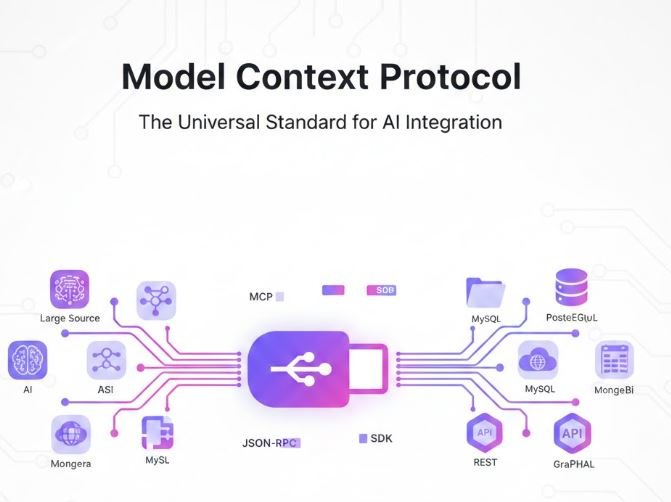
Model Context Protocol (MCP) is an open protocol developed by Anthropic that standardizes how AI applications connect to data sources and tools. Think of it as the “USB-C” of AI – just as USB-C created a universal standard for device connections, MCP creates a universal standard for AI agent connections.
🎯 What is MCP?
MCP is an open-source protocol that enables seamless integration between Large Language Models (LLMs) and external data sources. It eliminates the need to write custom integrations for every data source and AI model combination.
🔄 Universal Standard
One protocol to connect any AI model to any data source
🔌 Plug & Play
Connect to databases, files, APIs without custom code
🔐 Secure
Built-in security and permission management
📈 Scalable
From local files to enterprise databases
2. Why MCP? The Problem It Solves
The Problem Before MCP
Before MCP, connecting AI models to data sources required:
- Writing custom integration code for each data source
- Maintaining separate connectors for different AI models
- Complex authentication and security implementations
- No standardization across different systems
Before MCP: The Integration Nightmare
The MCP Solution
With MCP: Standardized Connections
✅ Benefits of MCP
- Interoperability: Works with any LLM that supports MCP
- Simplicity: No custom integration code needed
- Reusability: Write once, use with any compatible AI model
- Community-Driven: Growing ecosystem of pre-built servers
3. MCP Architecture
MCP follows a client-server architecture with three main components:
MCP Architecture Overview
(Claude Desktop, IDEs, etc.)
(Protocol Implementation)
(Database, Files, APIs)
Components Explained
| Component | Role | Examples |
|---|---|---|
| MCP Host | Application that wants to access data through MCP | Claude Desktop, Custom AI Apps, IDEs |
| MCP Client | Maintains 1:1 connections with MCP servers | Protocol implementation in your app |
| MCP Server | Exposes data and capabilities to clients | Database connectors, File systems, APIs |
Key Primitives
📚 Resources
Data that servers expose (files, database records, API responses)
🛠️ Tools
Functions that LLMs can invoke (queries, file operations, API calls)
💬 Prompts
Pre-defined templates for common interactions
🔔 Sampling
Servers can request LLM completions through the client
4. Core Concepts
Resources
Resources represent any kind of data that an MCP server wants to make available. Each resource is identified by a unique URI.
Example: File System Resources
{
  "resources": [
    {
      "uri": "file:///home/user/documents/report.pdf",
      "name": "Q4 Financial Report",
      "mimeType": "application/pdf",
      "description": "Quarterly financial analysis"
    },
    {
      "uri": "file:///home/user/data/sales.csv",
      "name": "Sales Data",
      "mimeType": "text/csv",
      "description": "2024 sales records"
    }
  ]
}
Tools
Tools are functions that the LLM can call to perform actions or retrieve information. Each tool has a defined schema describing its inputs.
Example: Database Query Tool
{
  "name": "query_database",
  "description": "Execute a SQL query on the database",
  "inputSchema": {
    "type": "object",
    "properties": {
      "query": {
        "type": "string",
        "description": "SQL query to execute"
      },
      "database": {
        "type": "string",
        "description": "Database name"
      }
    },
    "required": ["query", "database"]
  }
}
Prompts
Prompts are reusable templates that help structure interactions with your data.
Example: Analysis Prompt Template
{
  "name": "analyze_sales",
  "description": "Analyze sales data for insights",
  "arguments": [
    {
      "name": "time_period",
      "description": "Period to analyze (e.g., 'Q4 2024')",
      "required": true
    },
    {
      "name": "region",
      "description": "Geographic region",
      "required": false
    }
  ]
}
5. Installation & Setup
Prerequisites
- Node.js 18 or higher (for TypeScript/JavaScript servers)
- Python 3.10 or higher (for Python servers)
- Claude Desktop app (for testing)
Installing MCP SDK
For TypeScript/JavaScript:
# Using npm
npm install @modelcontextprotocol/sdk

# Using yarn
yarn add @modelcontextprotocol/sdk
For Python:
# Using pip
pip install mcp

# Using uv (recommended)
uv pip install mcp
Configuring Claude Desktop
To use MCP servers with Claude Desktop, edit the configuration file:
macOS:
~/Library/Application Support/Claude/claude_desktop_config.jsonWindows:
%APPDATA%\Claude\claude_desktop_config.jsonExample Configuration:
{
  "mcpServers": {
    "filesystem": {
      "command": "npx",
      "args": [
        "-y",
        "@modelcontextprotocol/server-filesystem",
        "/Users/username/Documents"
      ]
    },
    "postgres": {
      "command": "npx",
      "args": [
        "-y",
        "@modelcontextprotocol/server-postgres",
        "postgresql://localhost/mydb"
      ]
    }
  }
}
6. Practical Examples
Example 1: Simple File Server (TypeScript)
This example creates an MCP server that exposes text files from a directory:
import { Server } from "@modelcontextprotocol/sdk/server/index.js";
import { StdioServerTransport } from "@modelcontextprotocol/sdk/server/stdio.js";
import {
  CallToolRequestSchema,
  ListResourcesRequestSchema,
  ListToolsRequestSchema,
  ReadResourceRequestSchema,
} from "@modelcontextprotocol/sdk/types.js";
import fs from "fs/promises";
import path from "path";

const DOCUMENTS_DIR = process.argv[2] || "./documents";

// Create server instance
const server = new Server(
  {
    name: "file-server",
    version: "1.0.0",
  },
  {
    capabilities: {
      resources: {},
      tools: {},
    },
  }
);

// List available resources (files)
server.setRequestHandler(ListResourcesRequestSchema, async () => {
  const files = await fs.readdir(DOCUMENTS_DIR);
  const resources = files
    .filter(file => file.endsWith('.txt'))
    .map(file => ({
      uri: `file:///${path.join(DOCUMENTS_DIR, file)}`,
      name: file,
      mimeType: "text/plain",
      description: `Text file: ${file}`,
    }));

  return { resources };
});

// Read resource content
server.setRequestHandler(ReadResourceRequestSchema, async (request) => {
  const url = new URL(request.params.uri);
  const filePath = url.pathname;

  const content = await fs.readFile(filePath, "utf-8");

  return {
    contents: [
      {
        uri: request.params.uri,
        mimeType: "text/plain",
        text: content,
      },
    ],
  };
});

// List available tools
server.setRequestHandler(ListToolsRequestSchema, async () => {
  return {
    tools: [
      {
        name: "search_files",
        description: "Search for text in files",
        inputSchema: {
          type: "object",
          properties: {
            query: {
              type: "string",
              description: "Text to search for",
            },
          },
          required: ["query"],
        },
      },
    ],
  };
});

// Handle tool calls
server.setRequestHandler(CallToolRequestSchema, async (request) => {
  if (request.params.name === "search_files") {
    const query = request.params.arguments.query as string;
    const files = await fs.readdir(DOCUMENTS_DIR);
    const results = [];

    for (const file of files) {
      if (file.endsWith('.txt')) {
        const content = await fs.readFile(
          path.join(DOCUMENTS_DIR, file),
          "utf-8"
        );
        if (content.includes(query)) {
          results.push({
            file,
            matches: content.split('\n').filter(line =>
              line.includes(query)
            ),
          });
        }
      }
    }

    return {
      content: [
        {
          type: "text",
          text: JSON.stringify(results, null, 2),
        },
      ],
    };
  }

  throw new Error(`Unknown tool: ${request.params.name}`);
});

// Start the server
async function main() {
  const transport = new StdioServerTransport();
  await server.connect(transport);
  console.error("File MCP server running on stdio");
}

main().catch(console.error);
Example 2: SQLite Database Server (Python)
This example creates an MCP server that allows querying a SQLite database:
import asyncio
import sqlite3
from mcp.server import Server
from mcp.server.stdio import stdio_server
from mcp.types import (
    Resource,
    Tool,
    TextContent,
    ImageContent,
    EmbeddedResource,
)

# Initialize database connection
DB_PATH = "example.db"

def init_database():
    """Initialize a sample database"""
    conn = sqlite3.connect(DB_PATH)
    cursor = conn.cursor()

    cursor.execute("""
        CREATE TABLE IF NOT EXISTS users (
            id INTEGER PRIMARY KEY,
            name TEXT NOT NULL,
            email TEXT NOT NULL,
            created_at TIMESTAMP DEFAULT CURRENT_TIMESTAMP
        )
    """)

    cursor.execute("""
        CREATE TABLE IF NOT EXISTS orders (
            id INTEGER PRIMARY KEY,
            user_id INTEGER,
            product TEXT NOT NULL,
            amount DECIMAL(10, 2),
            order_date TIMESTAMP DEFAULT CURRENT_TIMESTAMP,
            FOREIGN KEY (user_id) REFERENCES users(id)
        )
    """)

    conn.commit()
    conn.close()

# Initialize the server
app = Server("sqlite-mcp-server")

@app.list_resources()
async def list_resources() -> list[Resource]:
    """List available database tables as resources"""
    conn = sqlite3.connect(DB_PATH)
    cursor = conn.cursor()

    cursor.execute(
        "SELECT name FROM sqlite_master WHERE type='table'"
    )
    tables = cursor.fetchall()
    conn.close()

    return [
        Resource(
            uri=f"sqlite:///{table[0]}",
            name=f"Table: {table[0]}",
            mimeType="application/json",
            description=f"Database table: {table[0]}",
        )
        for table in tables
    ]

@app.read_resource()
async def read_resource(uri: str) -> str:
    """Read all rows from a table"""
    table_name = uri.split("///")[1]

    conn = sqlite3.connect(DB_PATH)
    conn.row_factory = sqlite3.Row
    cursor = conn.cursor()

    cursor.execute(f"SELECT * FROM {table_name}")
    rows = [dict(row) for row in cursor.fetchall()]
    conn.close()

    return str(rows)

@app.list_tools()
async def list_tools() -> list[Tool]:
    """List available database tools"""
    return [
        Tool(
            name="query_database",
            description="Execute a SELECT query on the database",
            inputSchema={
                "type": "object",
                "properties": {
                    "query": {
                        "type": "string",
                        "description": "SQL SELECT query to execute",
                    }
                },
                "required": ["query"],
            },
        ),
        Tool(
            name="get_schema",
            description="Get the schema of a table",
            inputSchema={
                "type": "object",
                "properties": {
                    "table": {
                        "type": "string",
                        "description": "Table name",
                    }
                },
                "required": ["table"],
            },
        ),
    ]

@app.call_tool()
async def call_tool(name: str, arguments: dict) -> list[TextContent]:
    """Handle tool calls"""

    if name == "query_database":
        query = arguments["query"]

        # Security: Only allow SELECT queries
        if not query.strip().upper().startswith("SELECT"):
            return [
                TextContent(
                    type="text",
                    text="Error: Only SELECT queries are allowed",
                )
            ]

        conn = sqlite3.connect(DB_PATH)
        conn.row_factory = sqlite3.Row
        cursor = conn.cursor()

        try:
            cursor.execute(query)
            rows = [dict(row) for row in cursor.fetchall()]
            result = str(rows)
        except sqlite3.Error as e:
            result = f"Database error: {str(e)}"
        finally:
            conn.close()

        return [TextContent(type="text", text=result)]

    elif name == "get_schema":
        table = arguments["table"]

        conn = sqlite3.connect(DB_PATH)
        cursor = conn.cursor()

        cursor.execute(
            f"PRAGMA table_info({table})"
        )
        schema = cursor.fetchall()
        conn.close()

        schema_text = "\n".join(
            [f"{col[1]} {col[2]}" for col in schema]
        )

        return [
            TextContent(
                type="text",
                text=f"Schema for {table}:\n{schema_text}",
            )
        ]

    raise ValueError(f"Unknown tool: {name}")

async def main():
    """Run the MCP server"""
    init_database()

    async with stdio_server() as (read_stream, write_stream):
        await app.run(
            read_stream,
            write_stream,
            app.create_initialization_options(),
        )

if __name__ == "__main__":
    asyncio.run(main())
Example 3: REST API Server (TypeScript)
This example creates an MCP server that connects to a REST API:
import { Server } from "@modelcontextprotocol/sdk/server/index.js";
import { StdioServerTransport } from "@modelcontextprotocol/sdk/server/stdio.js";
import {
  CallToolRequestSchema,
  ListToolsRequestSchema,
} from "@modelcontextprotocol/sdk/types.js";

const API_BASE_URL = "https://jsonplaceholder.typicode.com";

const server = new Server(
  {
    name: "api-server",
    version: "1.0.0",
  },
  {
    capabilities: {
      tools: {},
    },
  }
);

server.setRequestHandler(ListToolsRequestSchema, async () => {
  return {
    tools: [
      {
        name: "get_posts",
        description: "Get blog posts from the API",
        inputSchema: {
          type: "object",
          properties: {
            userId: {
              type: "number",
              description: "Filter by user ID (optional)",
            },
            limit: {
              type: "number",
              description: "Maximum number of posts to return",
              default: 10,
            },
          },
        },
      },
      {
        name: "get_user",
        description: "Get user information by ID",
        inputSchema: {
          type: "object",
          properties: {
            userId: {
              type: "number",
              description: "User ID",
            },
          },
          required: ["userId"],
        },
      },
      {
        name: "create_post",
        description: "Create a new blog post",
        inputSchema: {
          type: "object",
          properties: {
            title: {
              type: "string",
              description: "Post title",
            },
            body: {
              type: "string",
              description: "Post content",
            },
            userId: {
              type: "number",
              description: "Author user ID",
            },
          },
          required: ["title", "body", "userId"],
        },
      },
    ],
  };
});

server.setRequestHandler(CallToolRequestSchema, async (request) => {
  const { name, arguments: args } = request.params;

  try {
    if (name === "get_posts") {
      let url = `${API_BASE_URL}/posts`;

      if (args.userId) {
        url += `?userId=${args.userId}`;
      }

      const response = await fetch(url);
      let posts = await response.json();

      if (args.limit) {
        posts = posts.slice(0, args.limit);
      }

      return {
        content: [
          {
            type: "text",
            text: JSON.stringify(posts, null, 2),
          },
        ],
      };
    }

    if (name === "get_user") {
      const response = await fetch(
        `${API_BASE_URL}/users/${args.userId}`
      );
      const user = await response.json();

      return {
        content: [
          {
            type: "text",
            text: JSON.stringify(user, null, 2),
          },
        ],
      };
    }

    if (name === "create_post") {
      const response = await fetch(`${API_BASE_URL}/posts`, {
        method: "POST",
        headers: {
          "Content-Type": "application/json",
        },
        body: JSON.stringify({
          title: args.title,
          body: args.body,
          userId: args.userId,
        }),
      });

      const newPost = await response.json();

      return {
        content: [
          {
            type: "text",
            text: `Post created successfully!\n${JSON.stringify(
              newPost,
              null,
              2
            )}`,
          },
        ],
      };
    }

    throw new Error(`Unknown tool: ${name}`);
  } catch (error) {
    return {
      content: [
        {
          type: "text",
          text: `Error: ${error.message}`,
        },
      ],
      isError: true,
    };
  }
});

async function main() {
  const transport = new StdioServerTransport();
  await server.connect(transport);
  console.error("API MCP server running on stdio");
}

main().catch(console.error);
7. Real-World Use Cases
1. Enterprise Data Integration
Scenario: Financial Analysis System
Connect Claude to multiple enterprise databases to analyze financial data:
- PostgreSQL for transaction records
- MongoDB for customer data
- Redis for real-time metrics
- S3 for financial reports
Result: AI can query any data source seamlessly to provide comprehensive financial insights.
2. Development Tools Integration
Scenario: Code Review Assistant
Connect to development tools:
- GitHub for code repositories
- Jira for issue tracking
- Confluence for documentation
- Local file system for project files
Result: AI can review code, suggest improvements, and update documentation automatically.
3. Customer Support Automation
Scenario: Intelligent Support Bot
Connect to customer data sources:
- CRM database (Salesforce, HubSpot)
- Knowledge base articles
- Support ticket history
- Product documentation
Result: AI provides personalized support based on customer history and product knowledge.
4. Research and Analysis
Scenario: Research Assistant
Connect to research databases:
- Academic paper databases
- Patent databases
- News APIs
- Statistical databases
Result: AI can perform comprehensive research across multiple sources simultaneously.
5. Personal Productivity
Scenario: Personal AI Assistant
Connect to personal data:
- Email (Gmail, Outlook)
- Calendar
- Note-taking apps (Notion, Evernote)
- Task managers (Todoist, Asana)
- Local documents and files
Result: AI manages your schedule, drafts emails, and organizes information seamlessly.
8. Best Practices
Security Considerations
⚠️ Important Security Practices
- Validate all inputs: Always validate and sanitize user inputs before executing queries or operations
- Use environment variables: Never hardcode credentials in your MCP servers
- Implement least privilege: Grant only necessary permissions to MCP servers
- Audit logging: Log all operations for security monitoring
- Rate limiting: Implement rate limits to prevent abuse
Performance Optimization
- Caching: Cache frequently accessed data to reduce database load
- Pagination: Return large datasets in pages rather than all at once
- Connection pooling: Reuse database connections efficiently
- Async operations: Use async/await for I/O operations
- Limit data transfer: Only return necessary fields and data
Error Handling
Example: Robust Error Handling
server.setRequestHandler(CallToolRequestSchema, async (request) => {
  try {
    // Your tool logic here
    const result = await performOperation(request.params.arguments);

    return {
      content: [
        {
          type: "text",
          text: JSON.stringify(result, null, 2),
        },
      ],
    };
  } catch (error) {
    console.error(`Error in ${request.params.name}:`, error);

    return {
      content: [
        {
          type: "text",
          text: `Error: ${error.message}\n\nPlease check your input and try again.`,
        },
      ],
      isError: true,
    };
  }
});
Documentation
- Clear descriptions: Provide detailed descriptions for all tools and resources
- Example usage: Include examples in your tool descriptions
- Schema validation: Use JSON Schema to define clear input requirements
- Error messages: Provide helpful error messages that guide users
Testing
Testing Your MCP Server
// Example test using Node.js
import { describe, it, expect } from 'vitest';
import { Client } from '@modelcontextprotocol/sdk/client/index.js';

describe('MCP Server Tests', () => {
  it('should list available tools', async () => {
    const client = new Client({
      name: 'test-client',
      version: '1.0.0',
    });

    // Connect to your server
    await client.connect(transport);

    // List tools
    const tools = await client.listTools();

    expect(tools.tools.length).toBeGreaterThan(0);
    expect(tools.tools[0]).toHaveProperty('name');
    expect(tools.tools[0]).toHaveProperty('inputSchema');
  });

  it('should execute tool correctly', async () => {
    // Test tool execution
    const result = await client.callTool({
      name: 'query_database',
      arguments: {
        query: 'SELECT * FROM users LIMIT 1',
      },
    });

    expect(result.content).toBeDefined();
    expect(result.isError).toBeFalsy();
  });
});
Deployment Checklist
✅ Before Deploying Your MCP Server
- ✓ All credentials stored securely in environment variables
- ✓ Input validation implemented for all tools
- ✓ Error handling in place for all operations
- ✓ Logging configured for monitoring
- ✓ Rate limiting implemented
- ✓ Documentation complete
- ✓ Tests passing
- ✓ Performance tested with realistic data
📚 Additional Resources
- Official Documentation: modelcontextprotocol.io
- GitHub Repository: github.com/modelcontextprotocol
- SDK Documentation: TypeScript and Python SDKs available
- Community Servers: Browse pre-built MCP servers for common use cases
- Discord Community: Join the MCP community for support and discussions
🚀 Getting Started
- Choose your programming language (TypeScript or Python)
- Install the MCP SDK
- Start with a simple example (file server or database)
- Configure Claude Desktop to use your server
- Test your integration
- Expand to more complex use cases